Introduction
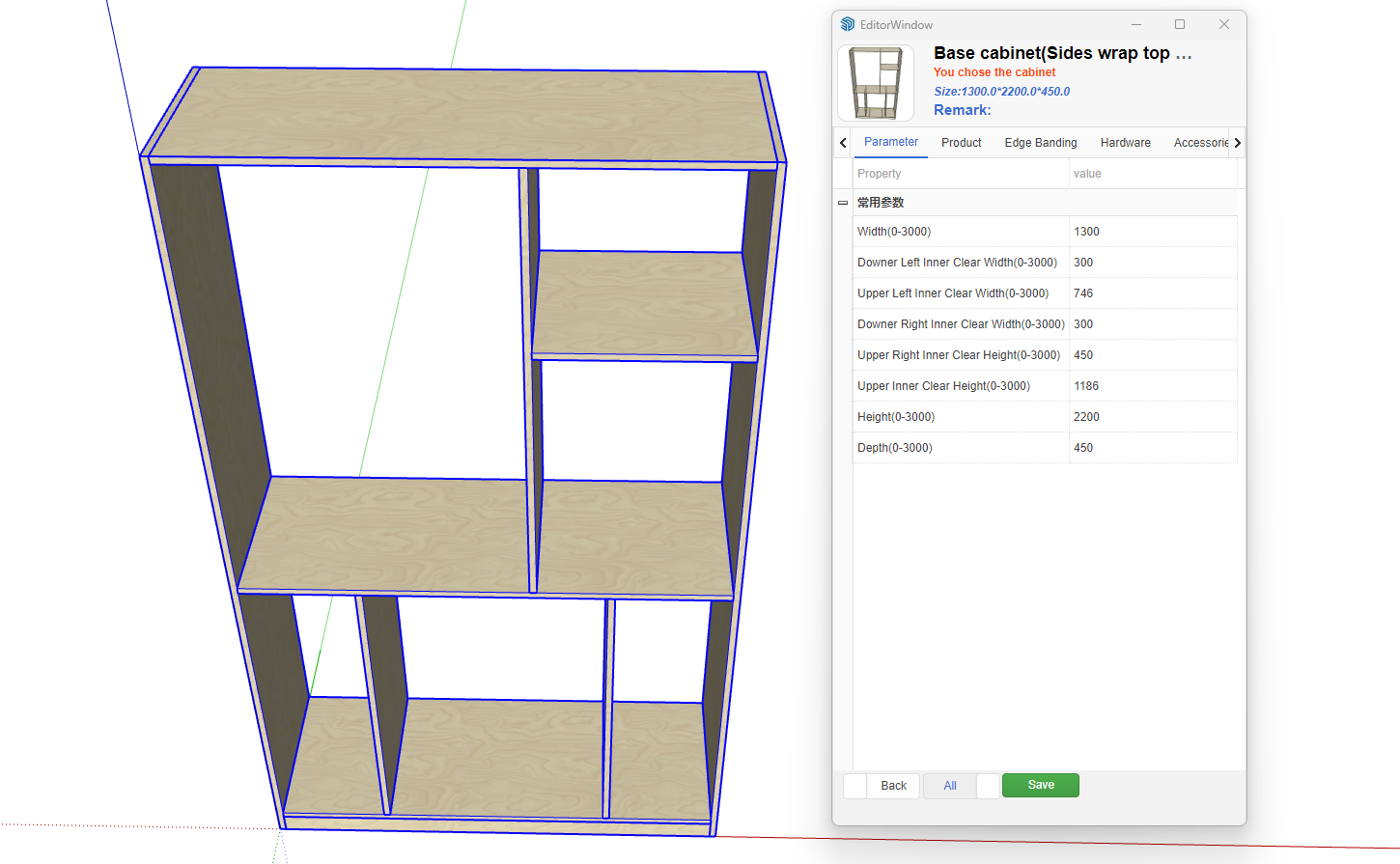
What is automatic parameterization? As the name suggests, it automatically creates parametric models. For example, manually create a set of cabinets, add dimension annotations, convert them according to specific rules, and upload them to the user model library. When used, parameter data will automatically pop up, allowing quick model changes by modifying the parameters.
Preparation
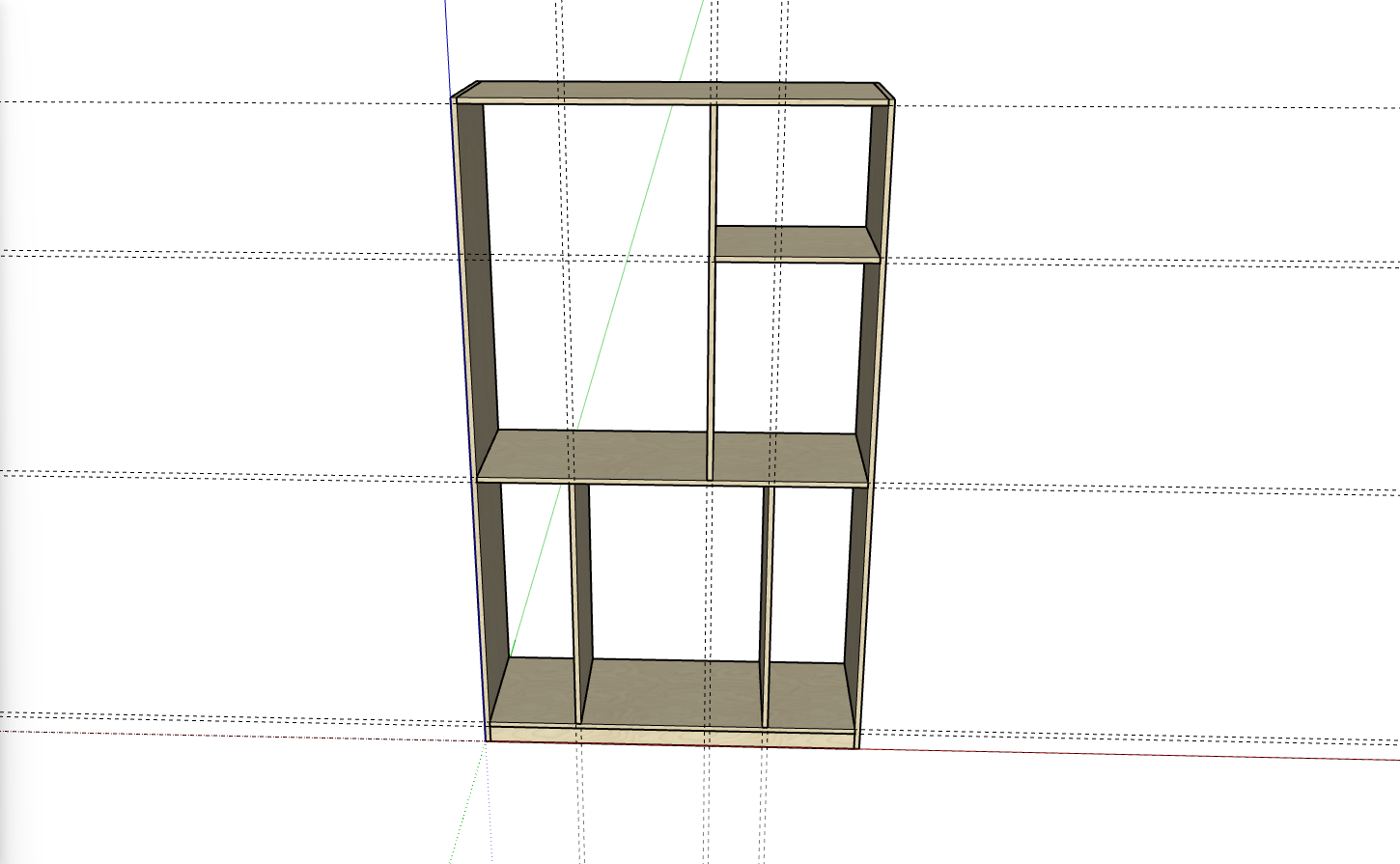
- Create a set of cabinets using any method
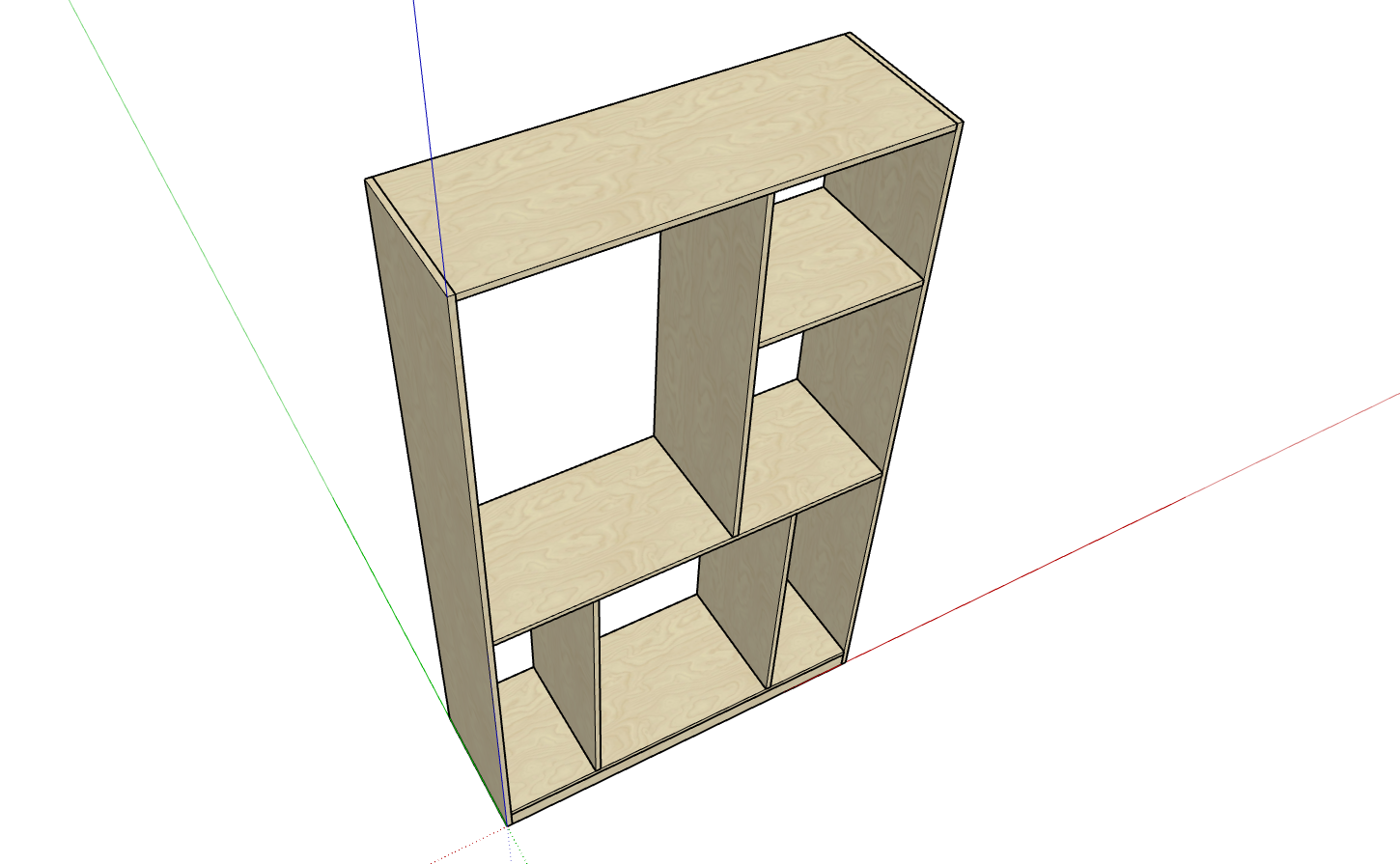
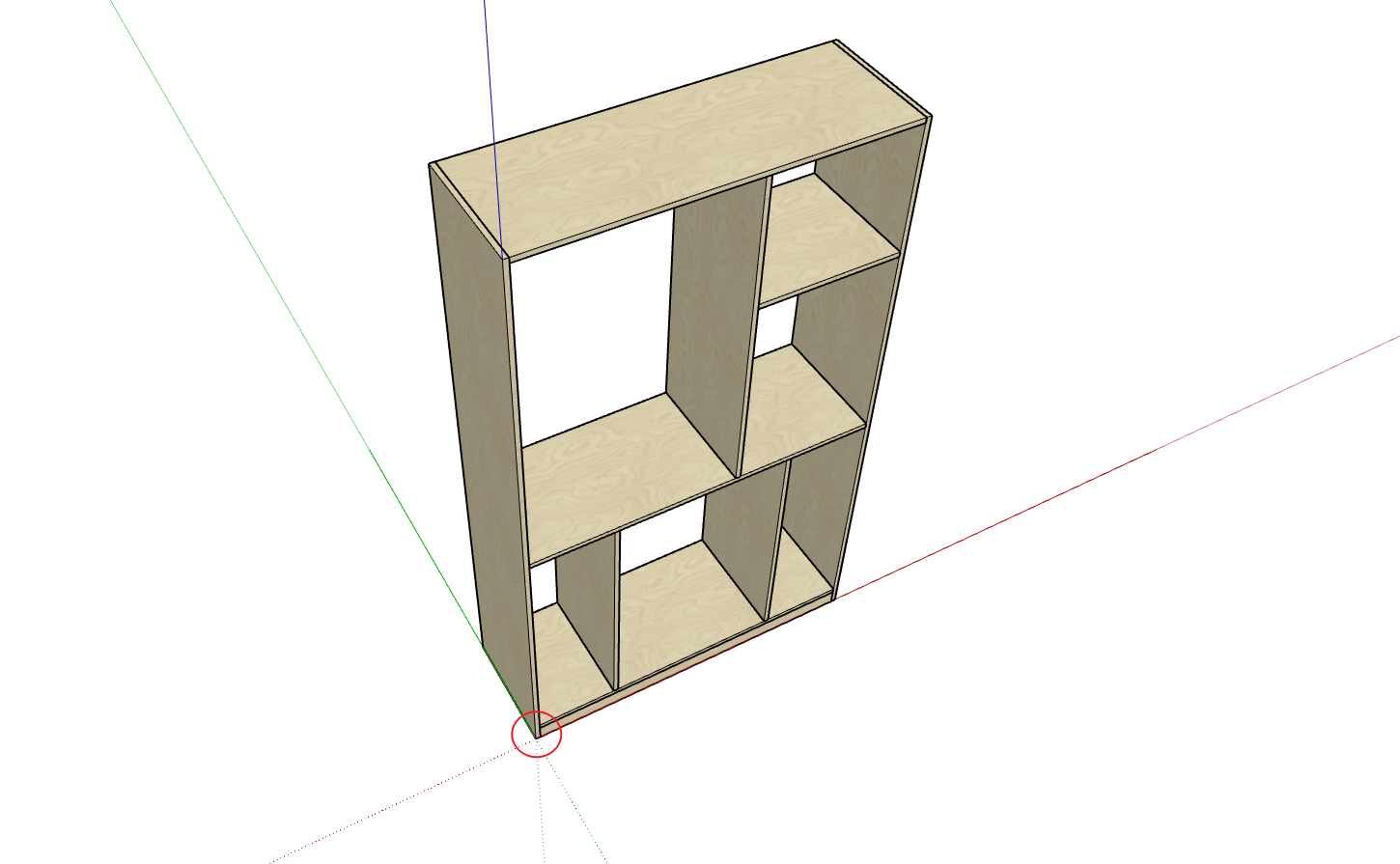
- Place the cabinet's corner point at the origin position
Dimension Annotation Rules
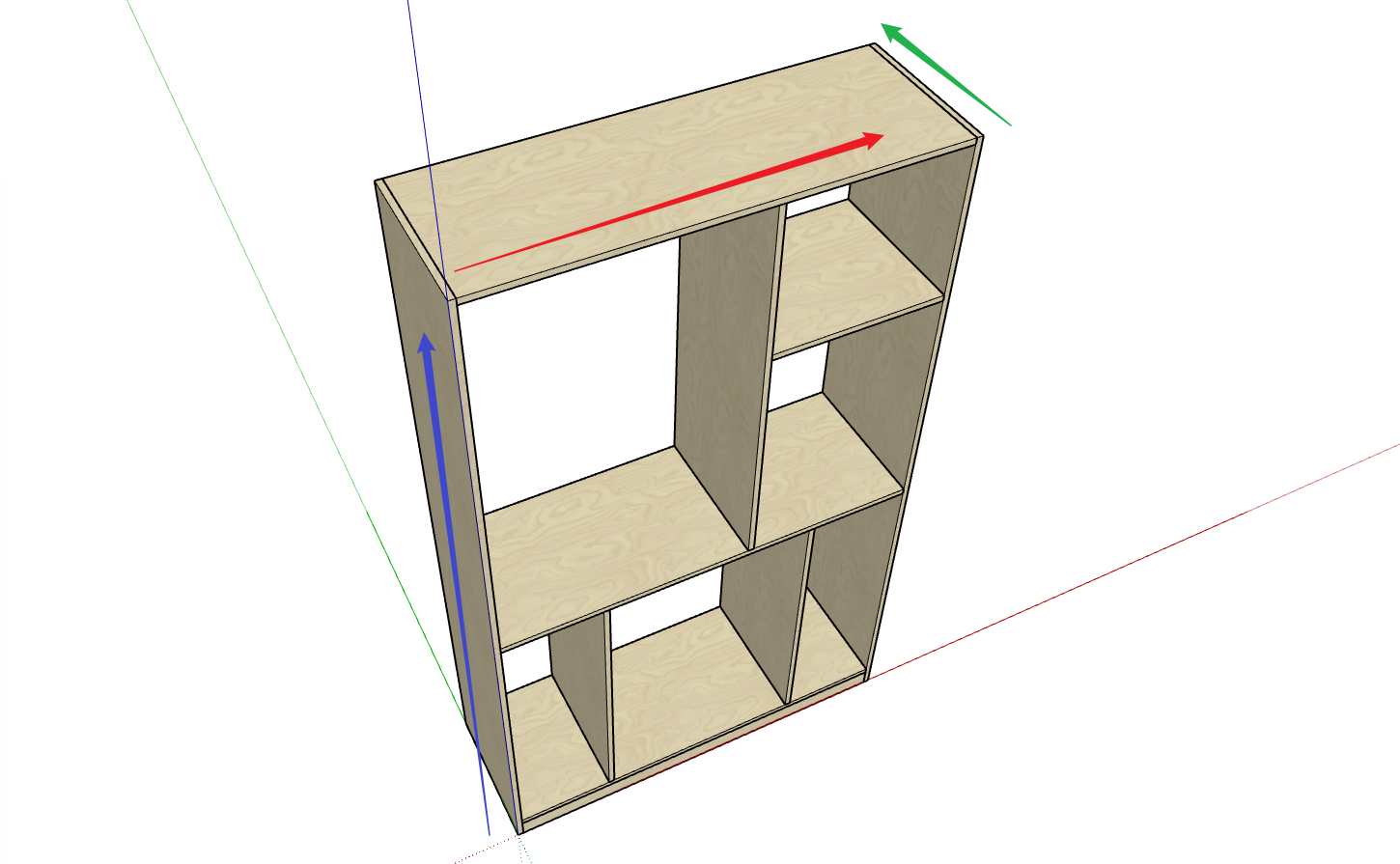
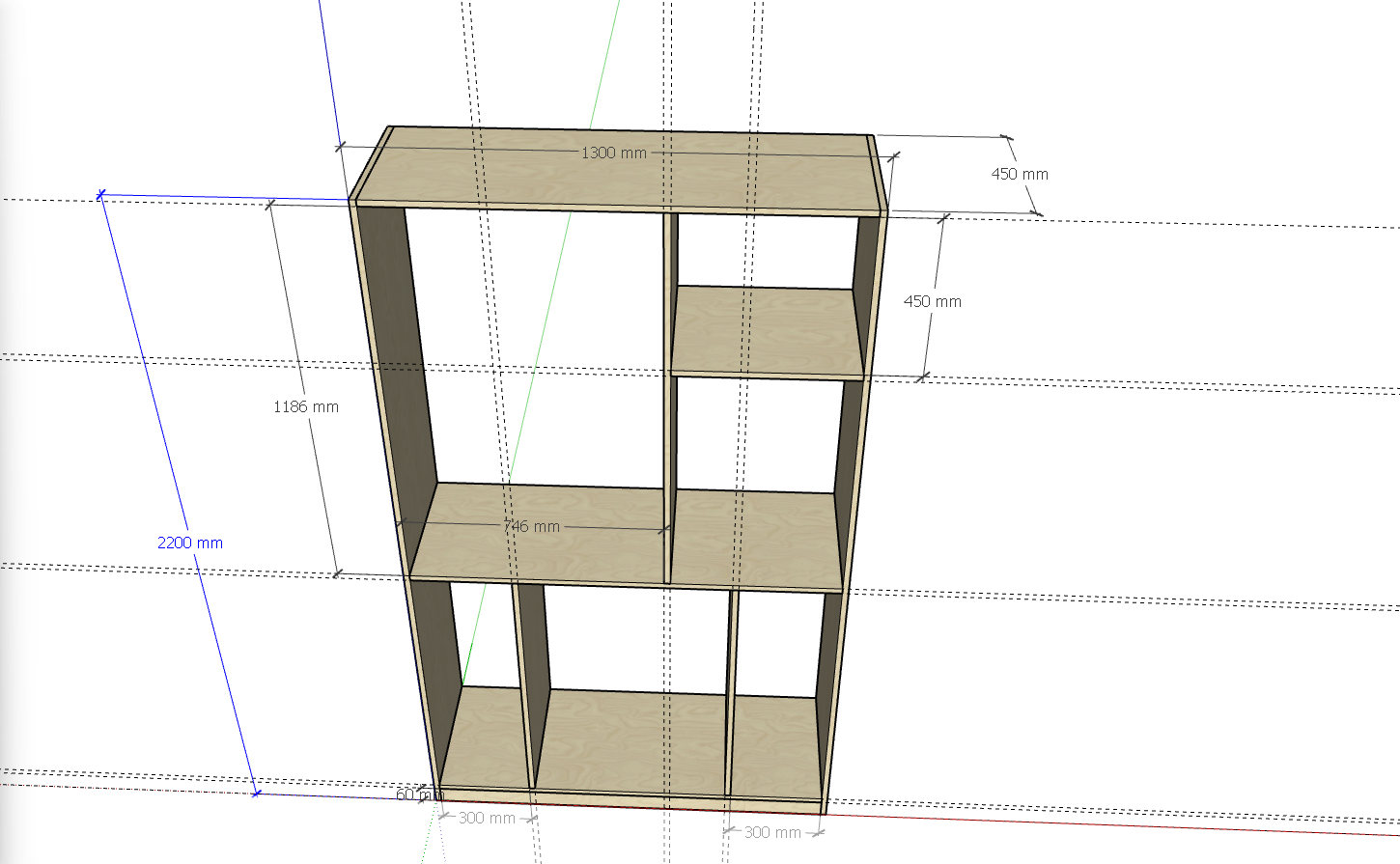
- Dimensions are divided into three directions: X (red), Y (green), Z (blue) axes (X represents width, Y represents depth, Z represents height)
- Annotate according to the three axis directions. See arrow directions in the figure below:
- Note: When annotating, the start and end points must follow the arrow direction - start point is the arrow's beginning direction, end point is the arrow's ending direction
Dimension Annotation
- When annotating, it's recommended to first use guide lines to divide the cabinet dimensions, ensuring all directional annotations are in the same plane. This prevents errors.
Defining Parameters
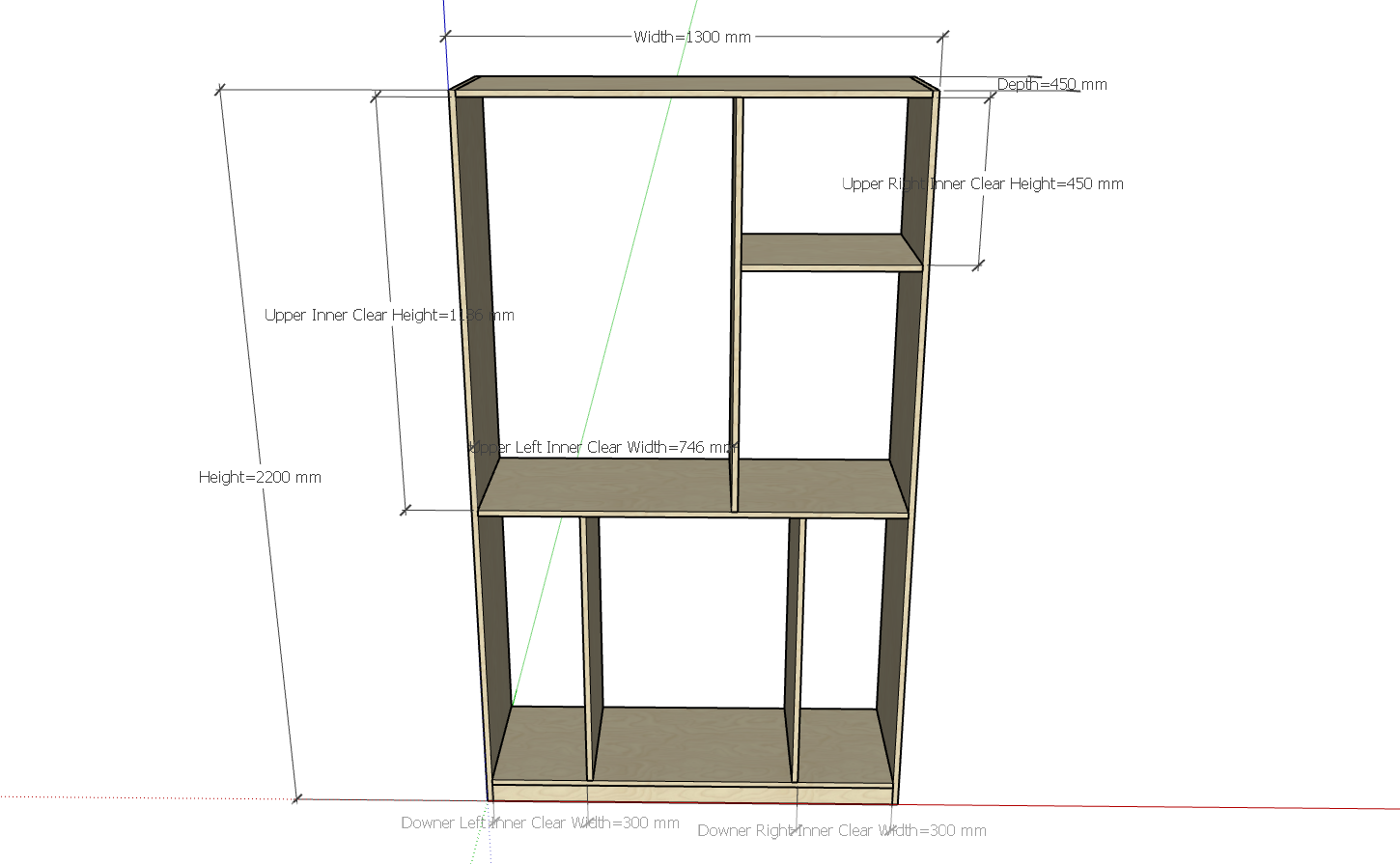
- Adaptive dimension naming rule: dimension, e.g.: 800
- Custom parameter dimension naming rule: parameter name=dimension data, e.g.: height=2400
- Each axis's annotated dimensions cannot have multiple adaptive dimensions, only one is allowed (the purpose of adaptive dimensions is that when changing other internal spaces, any added or reduced dimensions come from the adaptive space)
- Each axis's annotated dimensions can have multiple custom parameter dimensions.
- Ensure that there are no other immutable panels within the adaptive dimension's internal space
Uploading Models
- Select the annotated dimensions and cabinets, open the User Model Management window
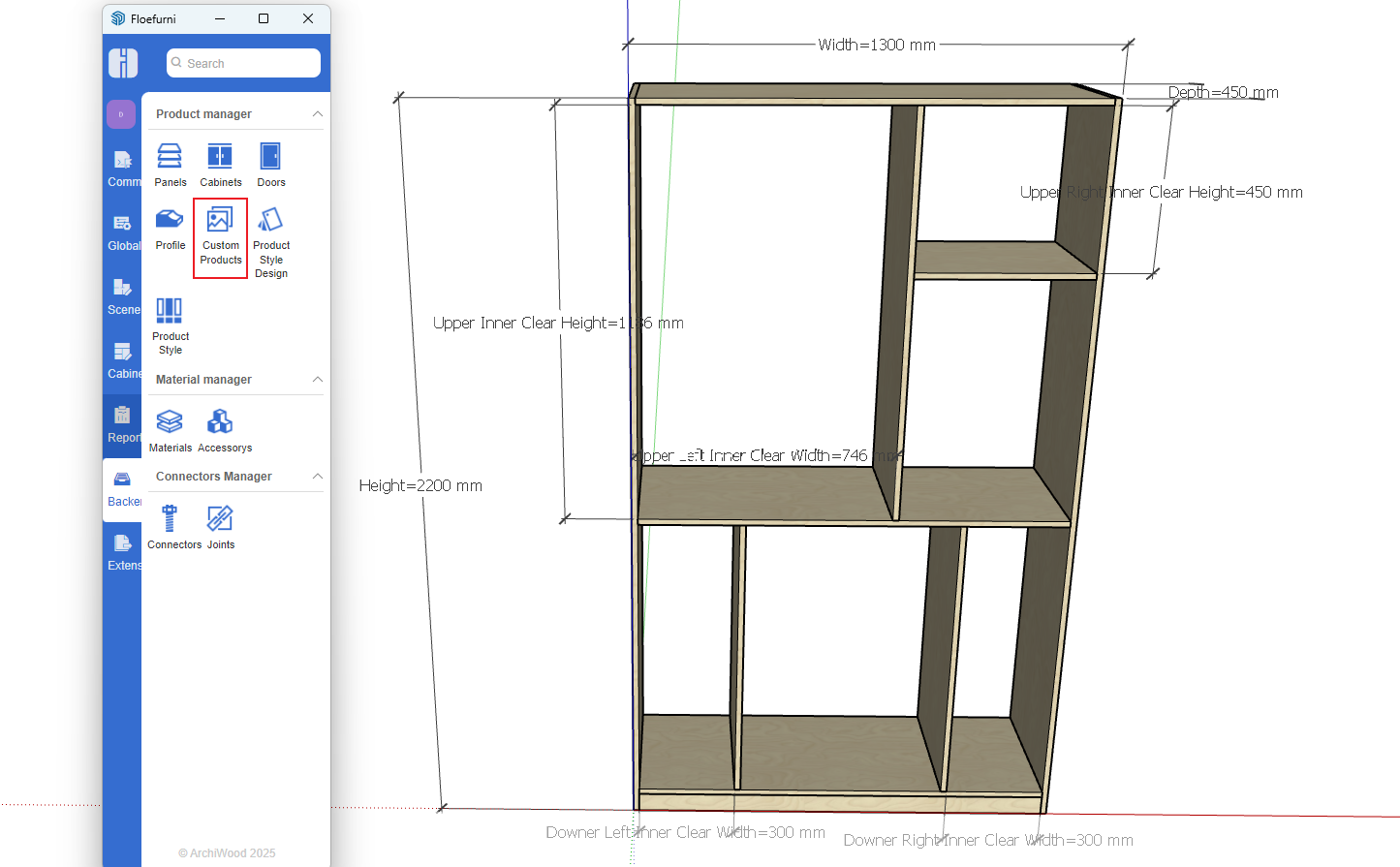
- Choose a good angle, right-click on any directory node to upload the model, give the model a name, and click Upload

How to Use
- Open the Product Library, under the User Drawing Frame tab, double-click the model you want to use
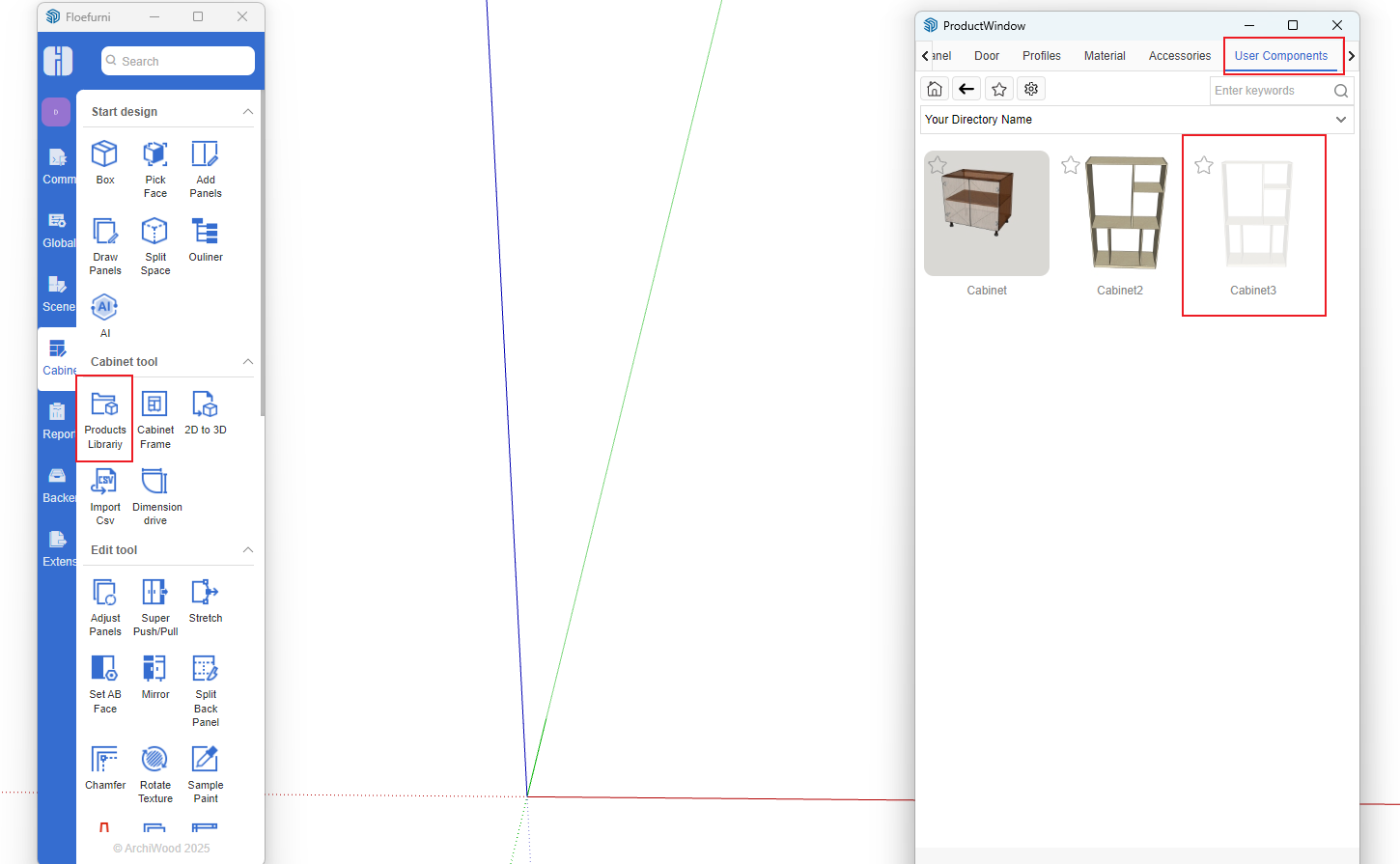
- After double-clicking, first position the model. Similar to using parametric cabinets, after positioning, a parameter change box will automatically pop up. Change dimensions as needed.