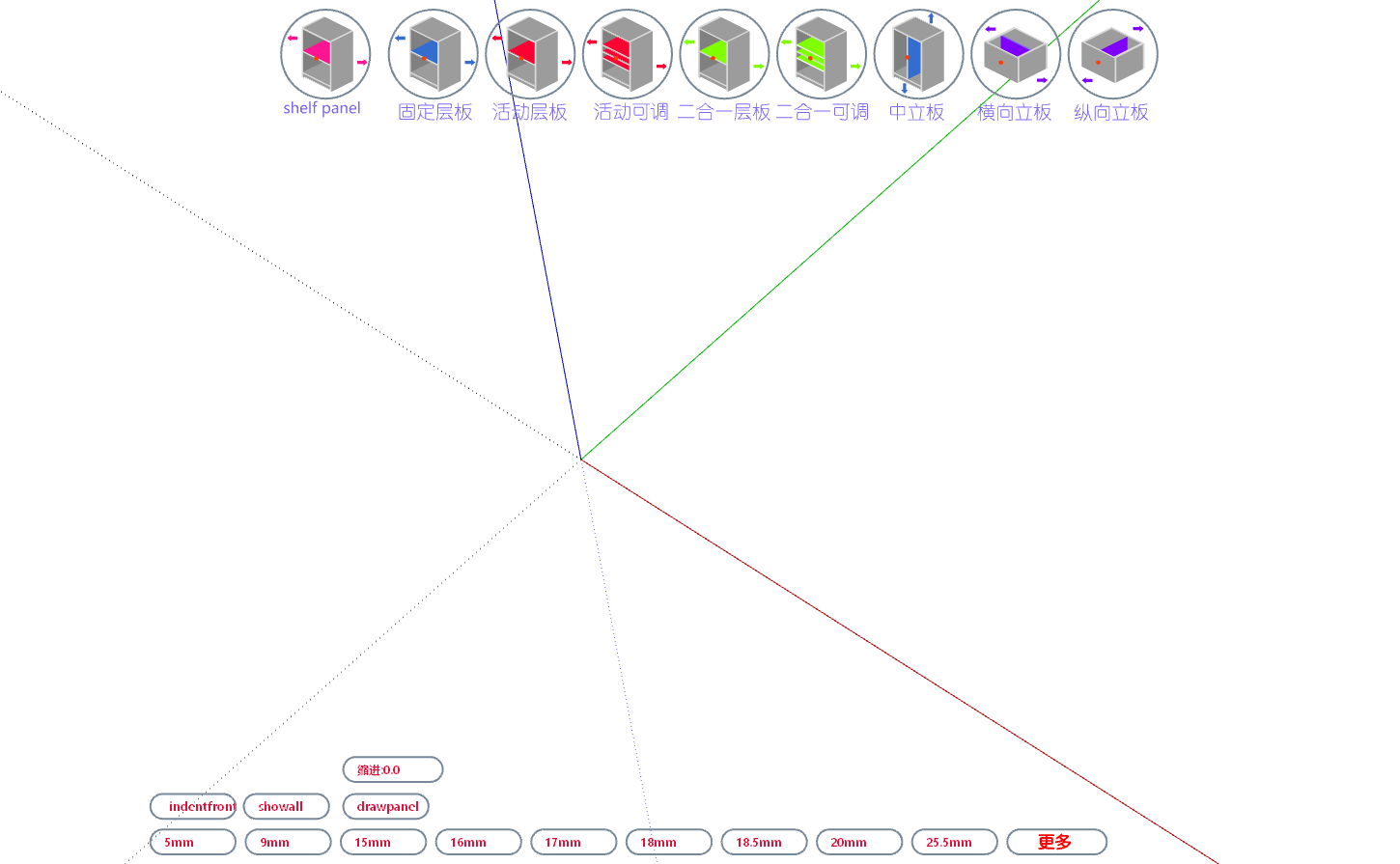
How to Add Quick Panel Icons
0 条评论
,
2 次修正,53 次阅读,
Last Modified At November 29, 2025
Introduction
- To meet increasingly diverse needs, Zhumu supports custom quick panel icon settings
Detailed Addition Method
- Open Panel Management and create the required panel data (as shown below)

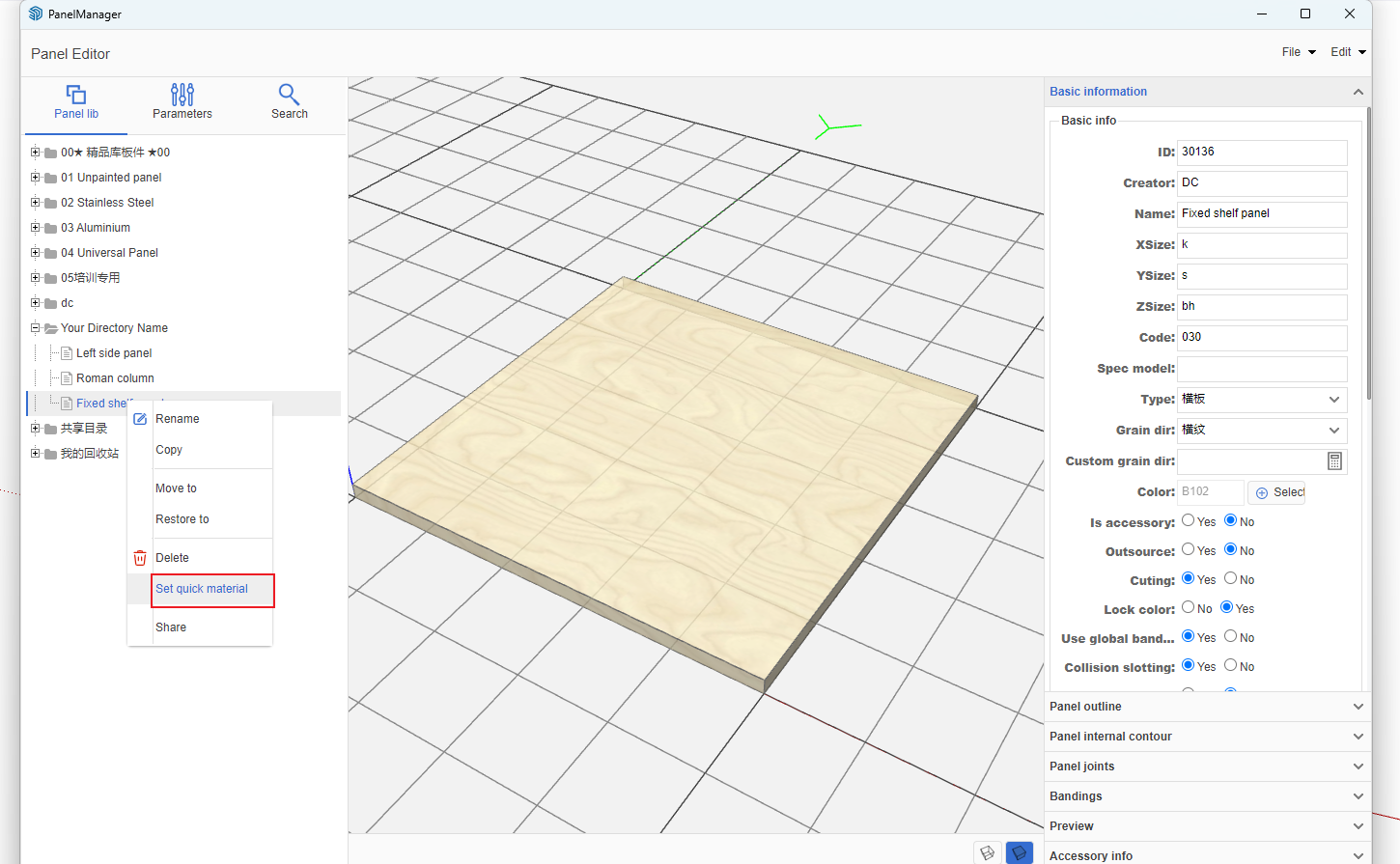
- Right-click on the panel -> Set as Quick Panel
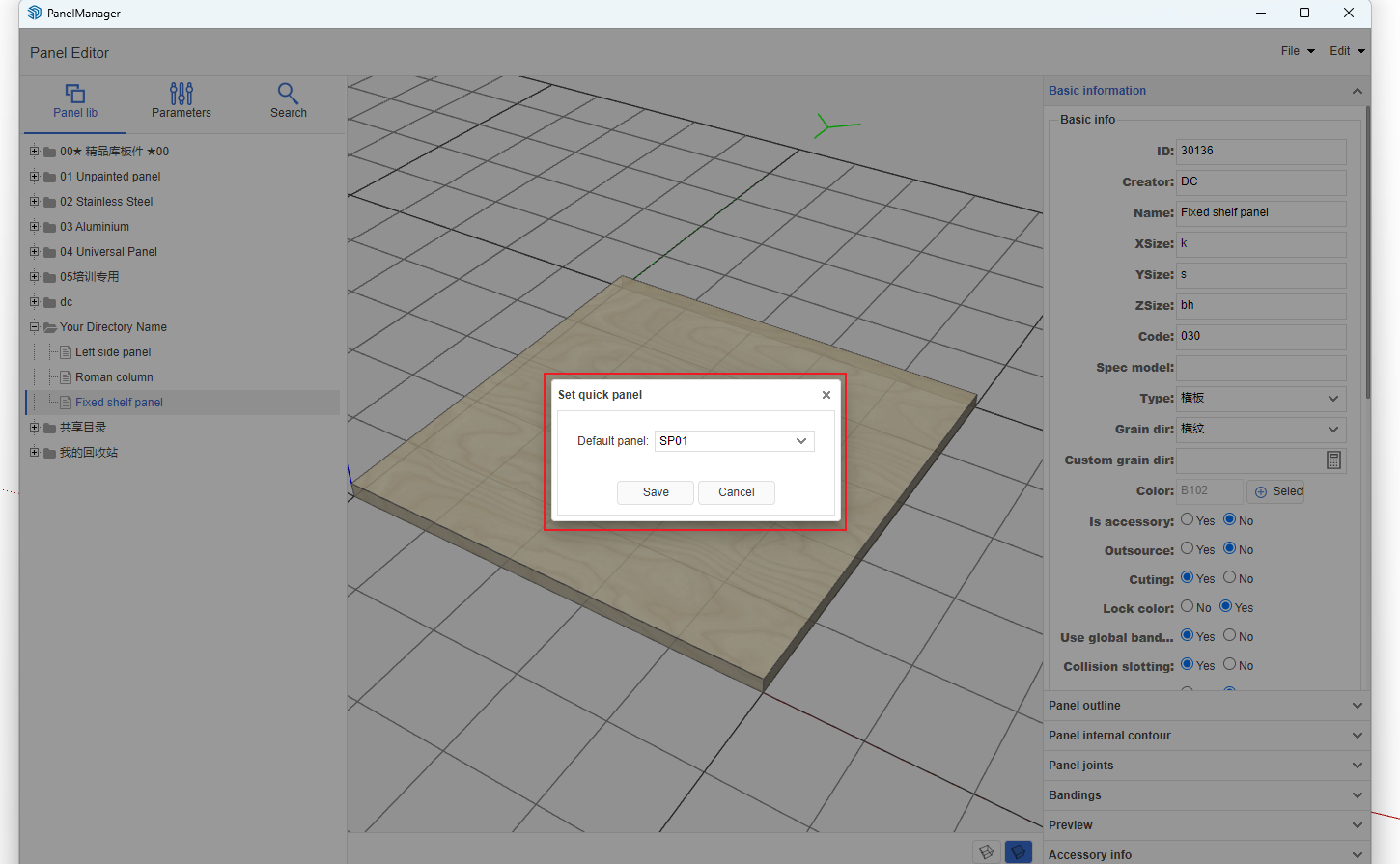
- Enter panel type name: zdy01 [Custom quick panels should be named in English or pinyin], then click Save
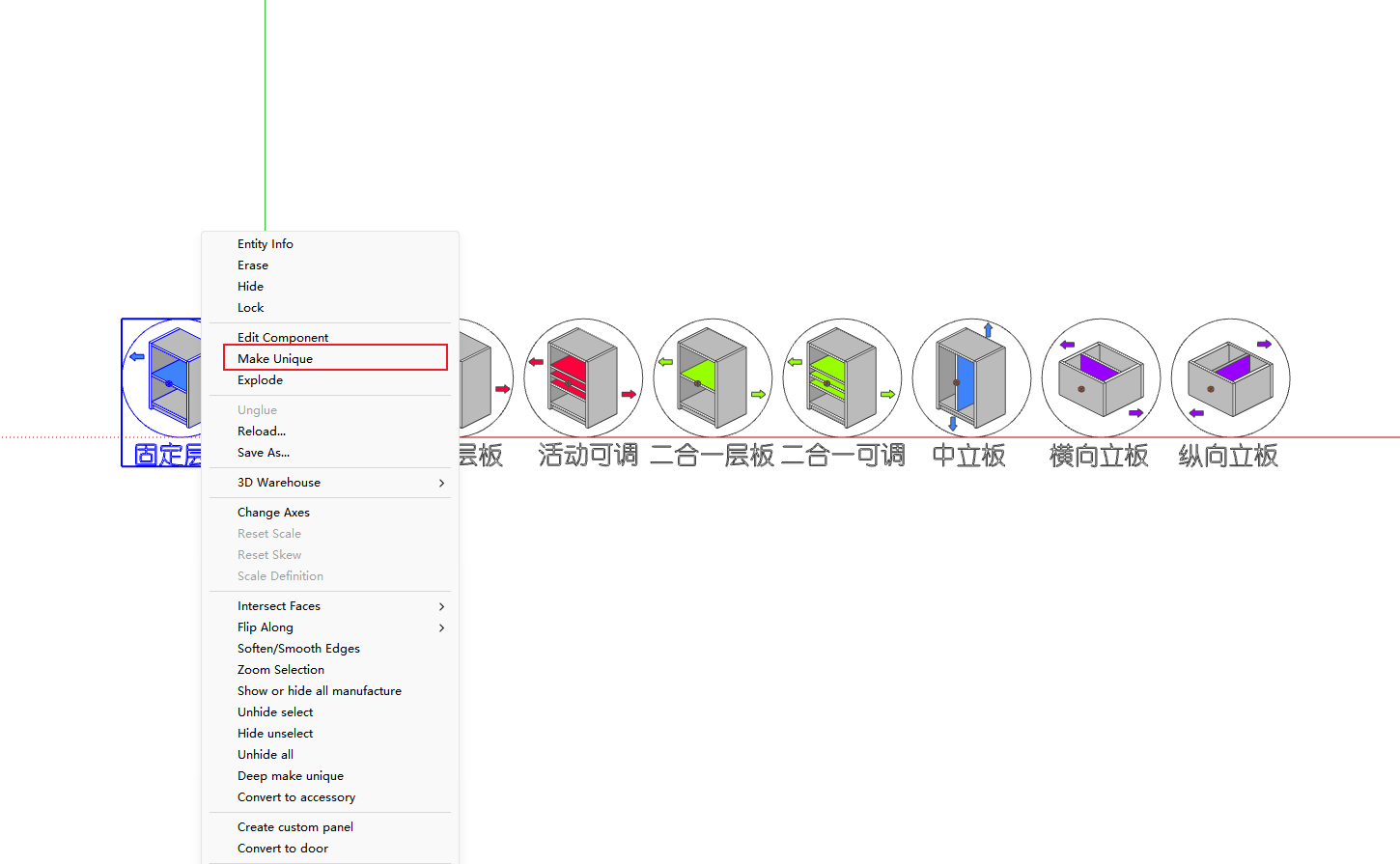
- Open the icon file [Icon files are .skp models, which can be requested from technical staff]

- Copy a shelf-type icon, arrange it at the end, right-click and set as unique, then click Model Info and enter the name as the quick panel name (zdy01)
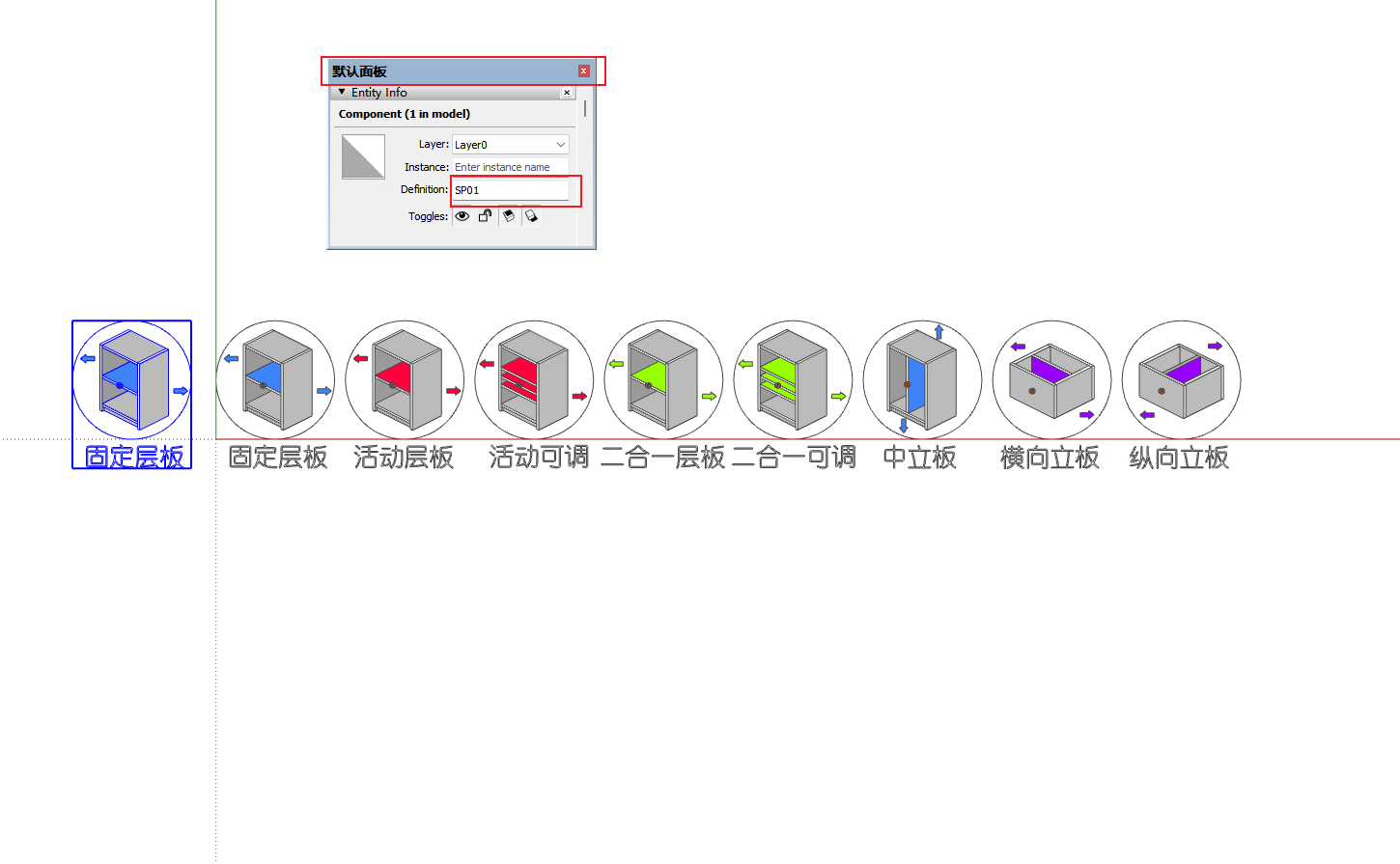
- You can customize this icon, such as setting colors, etc. [Of course, those with strong skills can create 3D text with 0 thickness]
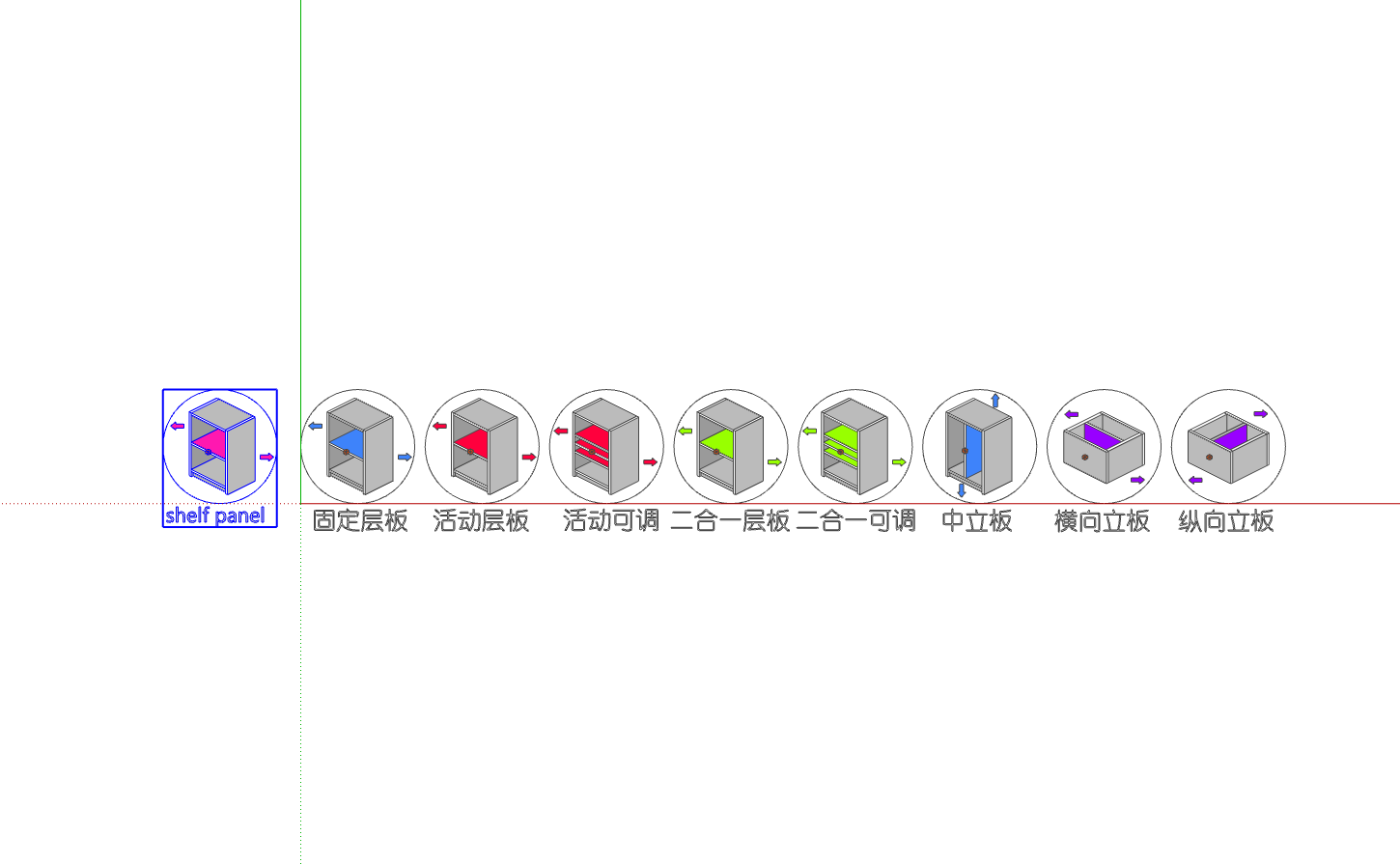
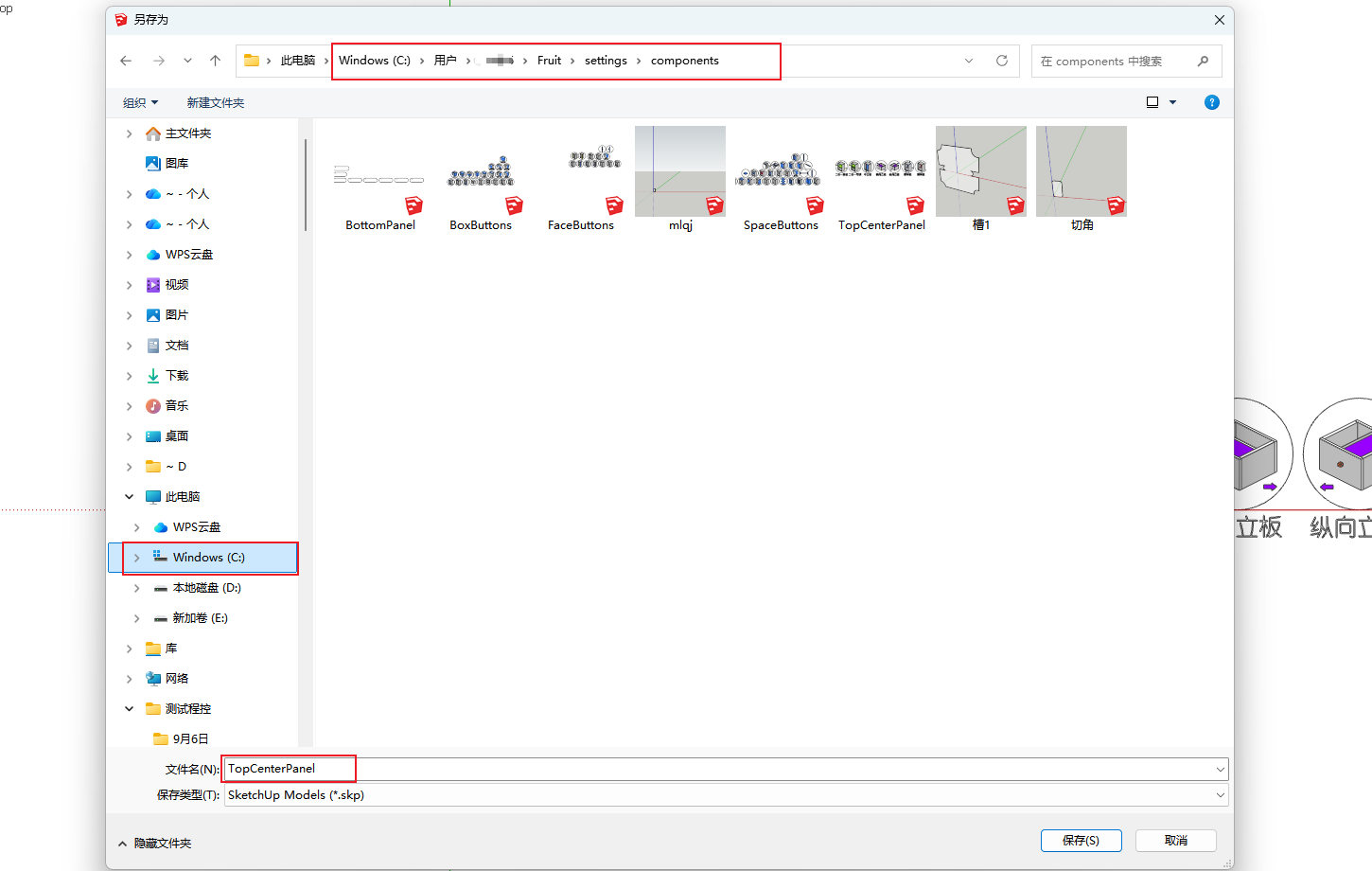
- After modification, save as a file named: TopCenterPanel, with the path: 【C:\Users\YourComputerUsername\Fruit\settings\components\TopCenterPanel.skp】
- Restart the software and test the new icon